

Your group banner, avatar, and color come together to create your group identity. They are among the first things members see and help set the tone for who you are as a group.
Your group banner and avatar can feature photos, graphics, or a combination of both. Your group color helps visually identify your group and may appear on calendars for all group types, as well as on rosters and game scoreboards for teams.
Don't have an Avatar and Banner ready? You can use the Avatar and Banner Creator to create one from scratch and give your group a unique look.
You can customize these elements when creating your group or update them anytime in your Group Settings.
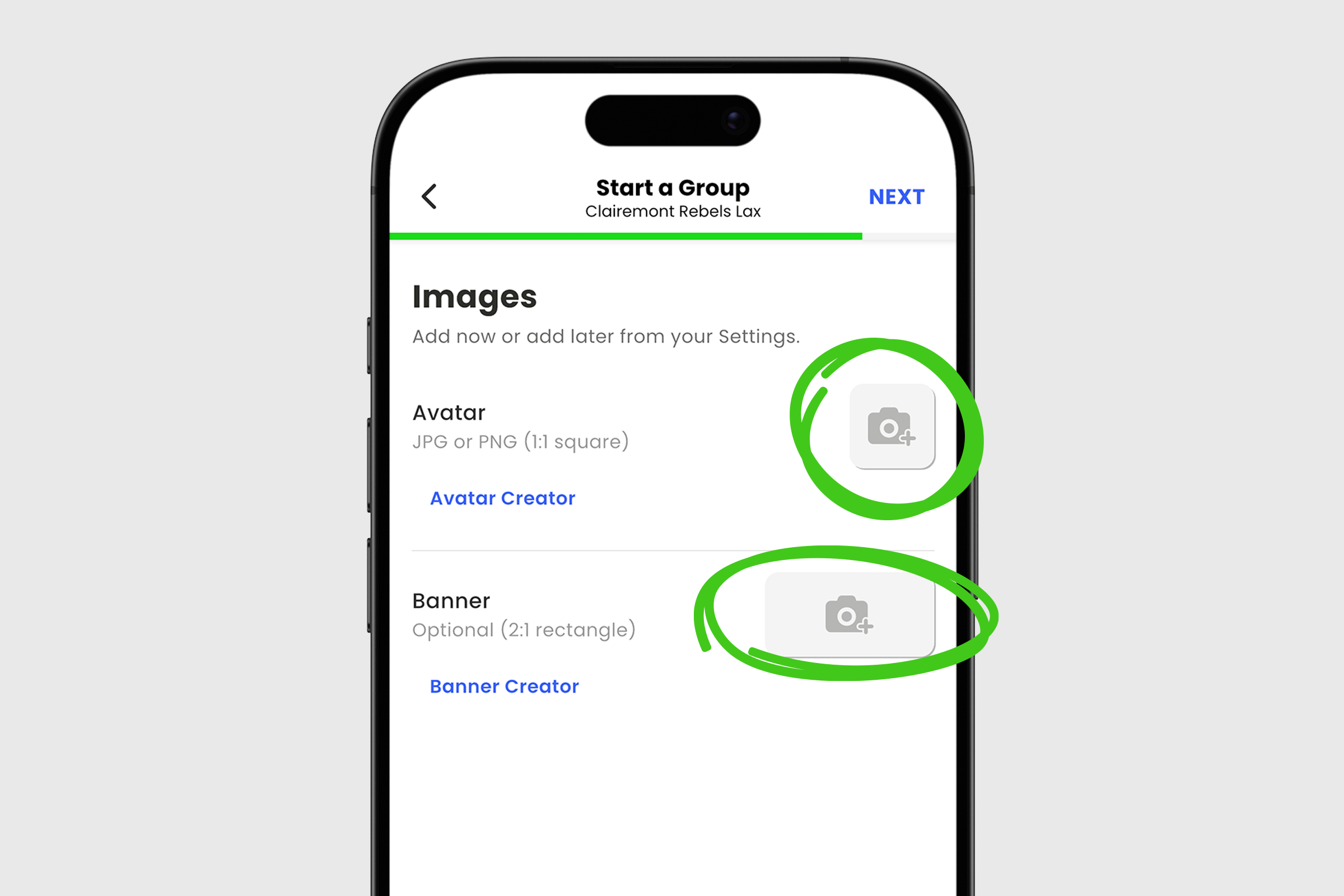
1. After entering your group name, selecting your group type, and choosing your privacy settings, you can add your Group Images.
2. Select the camera icon to upload your 1:1 square Avatar.
3. Select the camera icon again to upload your 2:1 rectangular Banner.
4. Once updated, select SAVE.
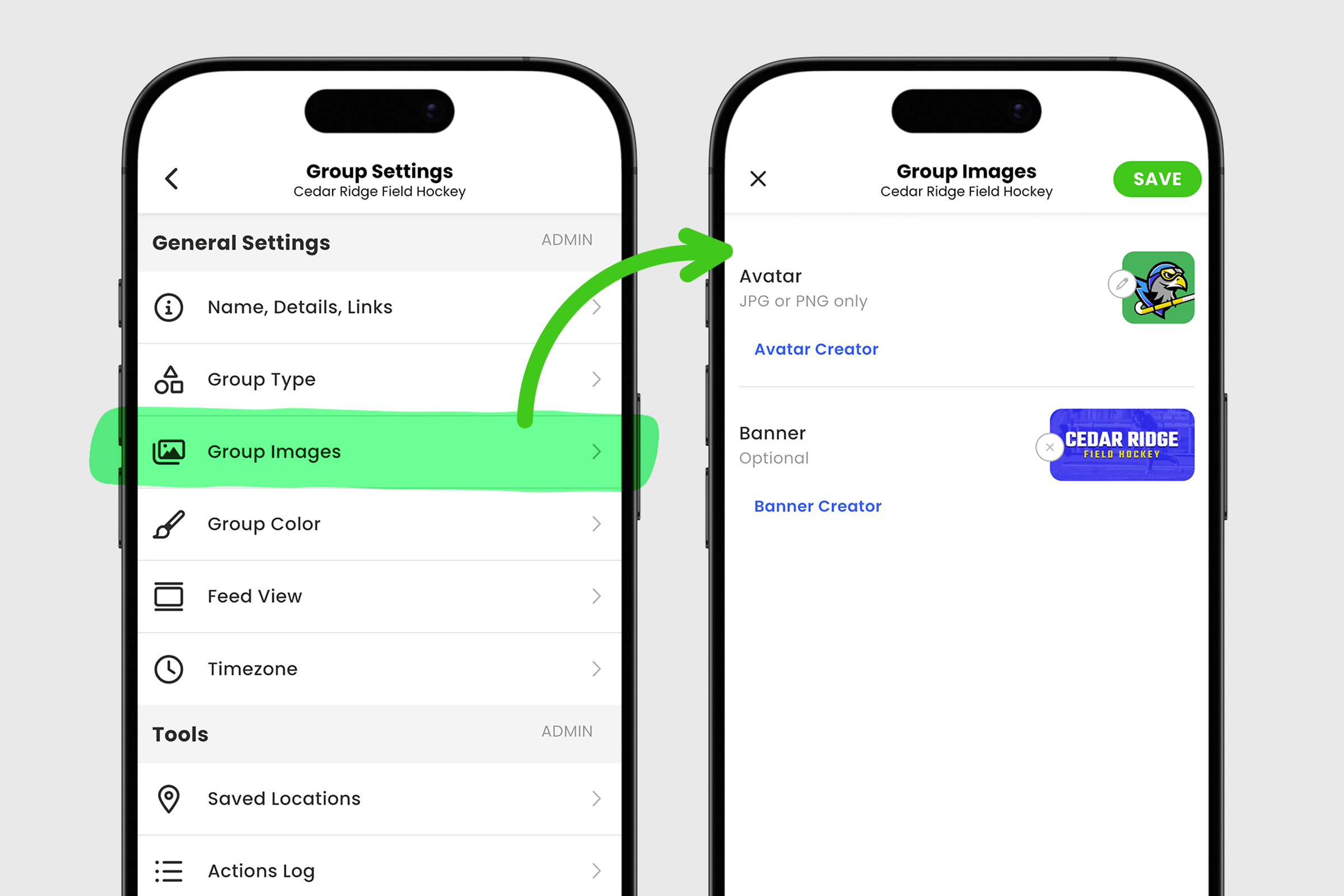
1. From your group's home screen, open the group menu and select Group Settings.
2. Under General Settings, select Group Images.
3. Select the camera icon to upload your 1:1 square Avatar.
4. Select the camera icon again to upload your 2:1 rectangular Banner.
5. When finished, select SAVE.
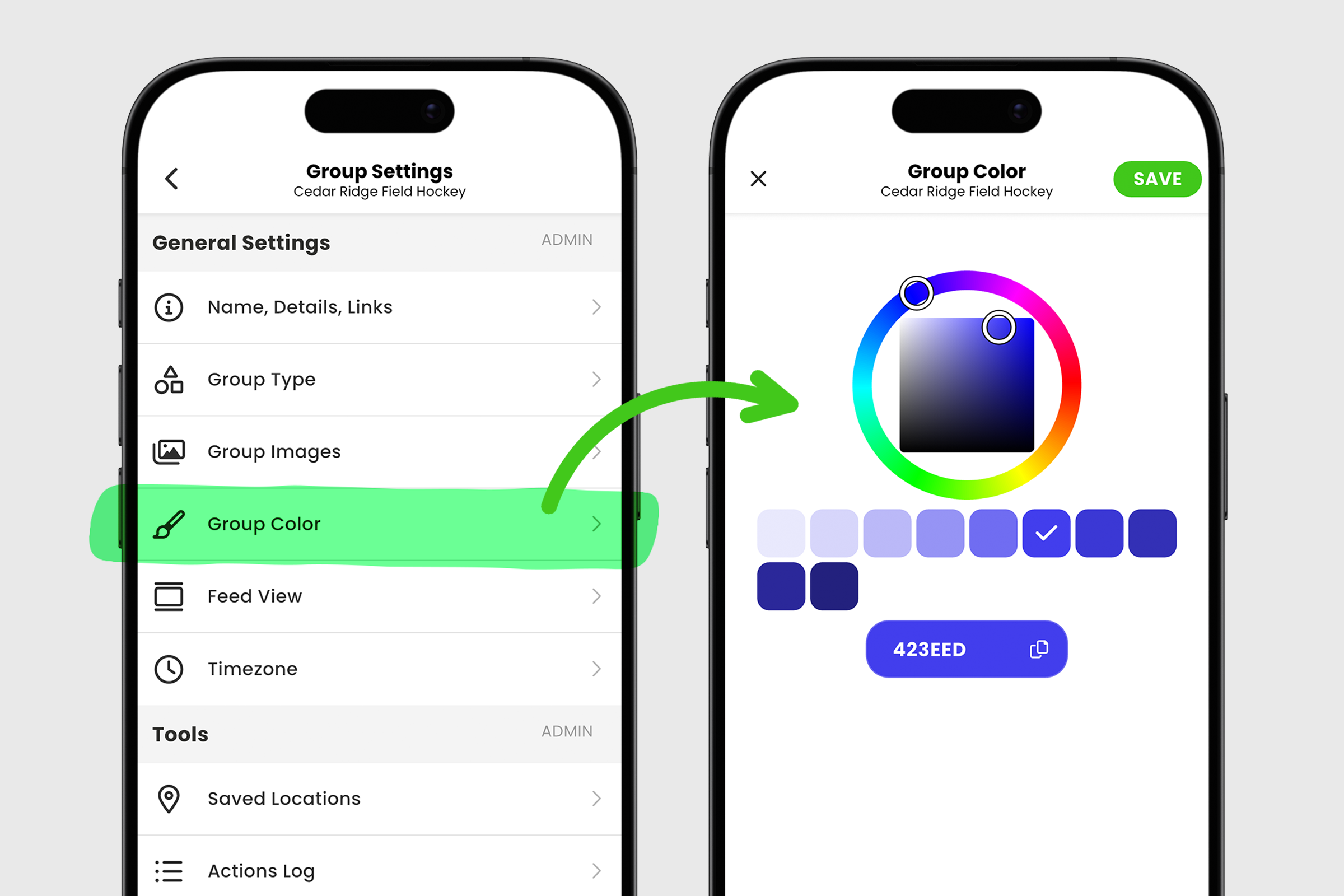
1. From your group's home screen, open the group menu and select Group Settings.
2. Under General Settings, select Group Color.
3. Enter your group color if you have it or use the color wheel to match it.
4. When finished, select SAVE.
With your banner, avatar, and color in place, your group has a unique visual identity that helps members recognize it across GroupSpot.


